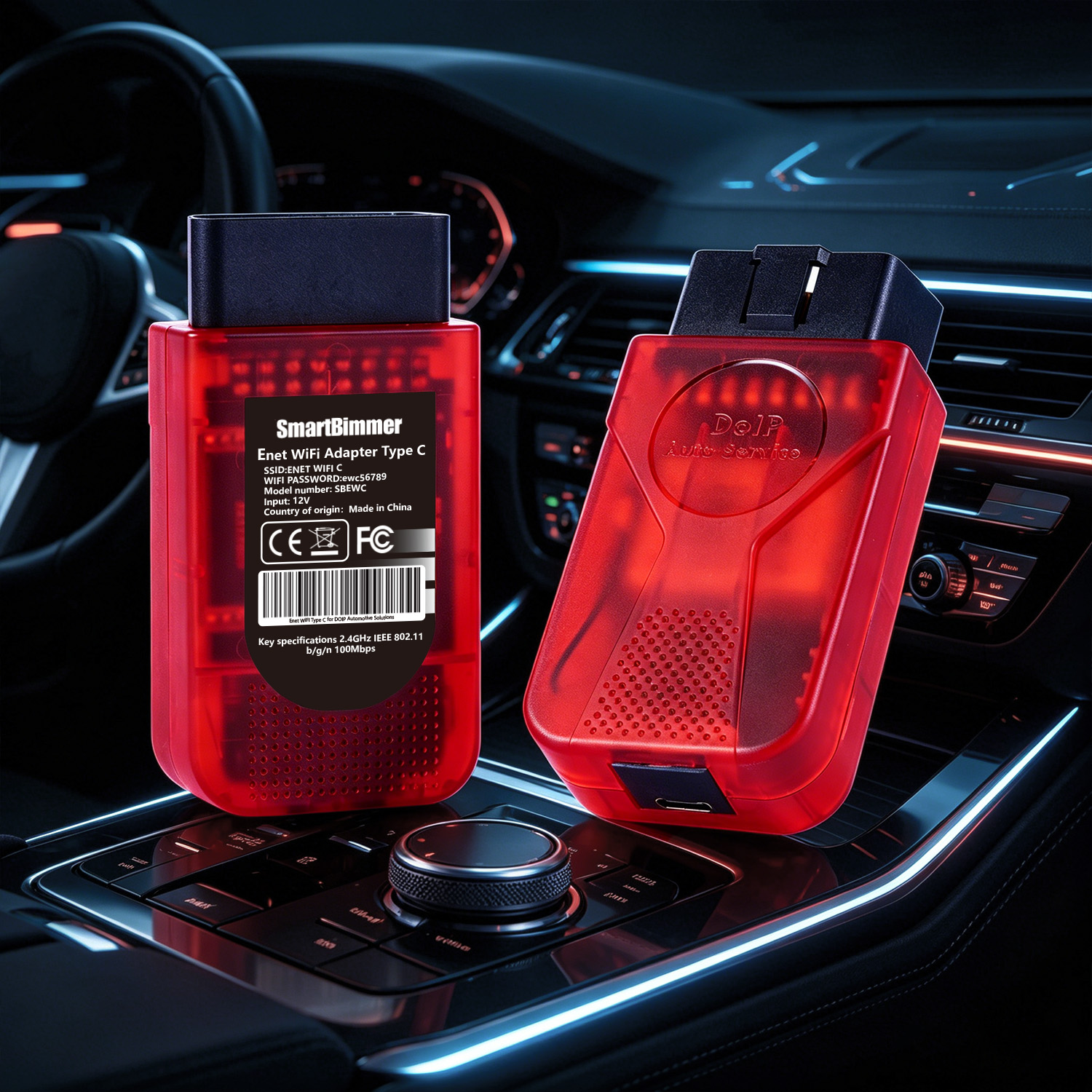
SmartBimmer ENet WiFi Adapter Type C
Unlock your BMW or MINI's true potential with the ultimate diagnostic and coding tool. The SmartBimmer ENet WiFi Adapter Type C is specifically engineered for BMW F, G, and I series, delivering lightning-fast communication between your vehicle’s ECU and your smartphone, tablet, or laptop.
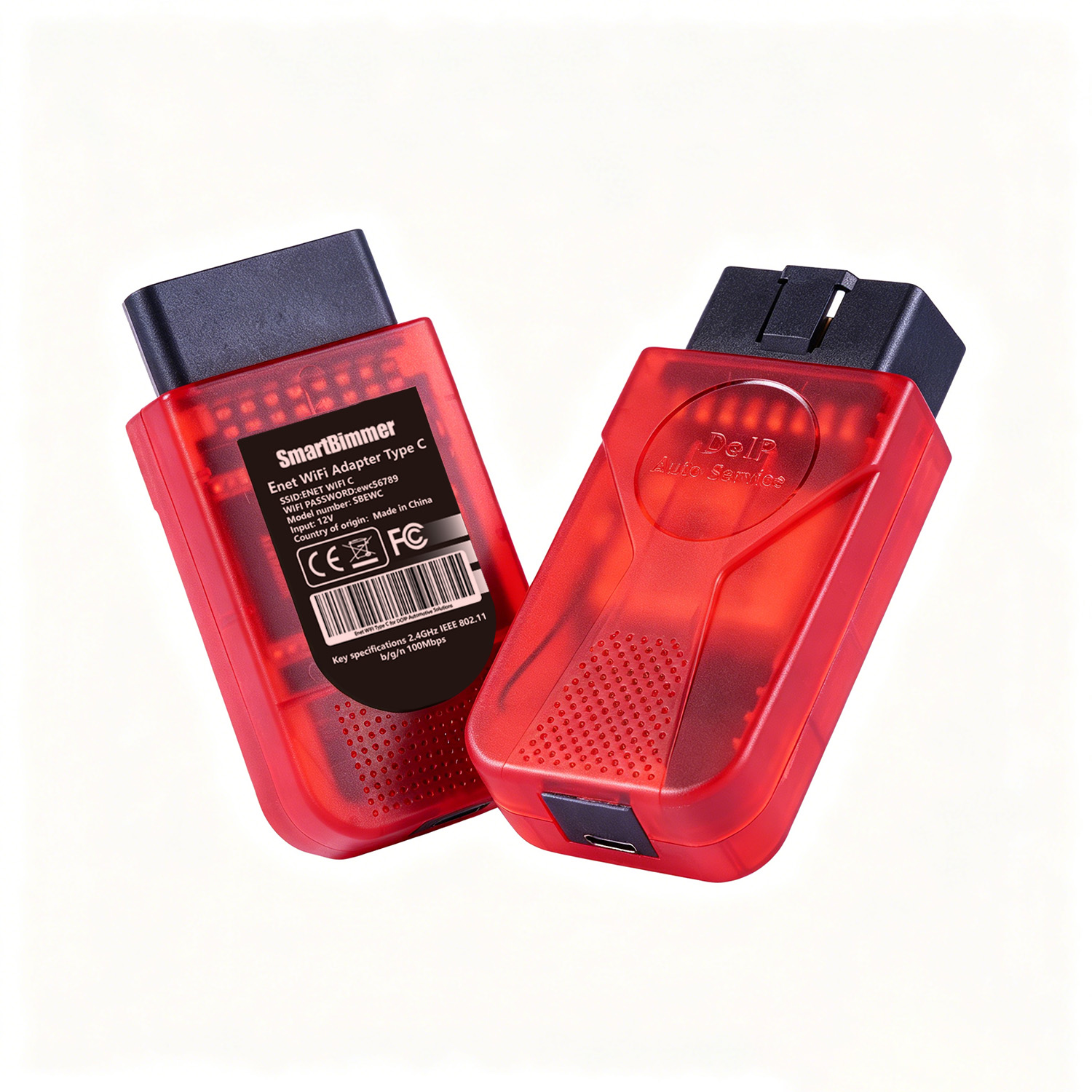
Whether you want to flash a new tune, read and clear fault codes, or customize hidden factory features, this dual-mode adapter (Wireless WiFi + Direct Type C) ensures a stable, high-speed connection every time.
Unleash Your BMW's Hidden Features
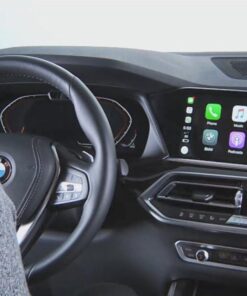
Gone are the days of slow, unreliable Bluetooth dongles. By utilizing a built-in Ethernet-to-WiFi protocol and a dedicated Type C wired option, the SmartBimmer ENet Adapter processes data significantly faster than standard OBD2 scanners. Flash your transmission, code in Apple CarPlay, or log engine data in real-time with zero lag.
Key Features
- Dual Connectivity: Use the high-speed 2.4GHz WiFi for wireless convenience, or plug in the included Type C cable for a hardwired, interference-free connection to your modern iPad, MacBook, or Android device.
- Lightning-Fast Read/Write: Flash tuning maps and code ECUs in a fraction of the time compared to traditional Bluetooth adapters.
- Safe & Secure: Built-in DC/DC converter and thermal heat sink protect your vehicle's ECU against voltage spikes and overheating during critical flashing processes.
- Plug & Play: Simply plug it into your OBD2 port, connect to the “SmartBimmer” Wi-Fi network (or plug in the Type C cable), and launch your favorite app.
Seamless App Compatibility
The SmartBimmer ENet WiFi Adapter Type C is officially compatible and thoroughly tested with top-tier BMW tuning and diagnostic software, including:
- BimmerCode: Unlock hidden features (video in motion, digital speedometer, custom ambient lighting).
- BimmerLink: Read and clear DTCs, register new car batteries, and open exhaust flaps.
- Bimmer Utility
- MHD Flasher & bootmod3 (BM3): Flash custom engine tunes (DME) for massive horsepower gains.
- xHP Flashtool: Optimize your transmission mapping for faster, crisper shifts.
- xDelete: Toggle your xDrive system between AWD and full RWD.
- Dealer Software: Fully supports E-Sys, ISTA/D, ISTA/P, and INPA for advanced PC-based diagnostics.
- JET-Master, JET-PRO, JET-LockSmith
- JLR TOPIx cloud access
- many more
Supported Vehicles
Note: This adapter is strictly for modern chassis codes and is NOT compatible with older BMW E-Series models.
- BMW 1 Series: F20, F21, F40, F52
- BMW 2 Series: F22, F23, F44, F45, F46, F87, G42
- BMW 3 Series: F30, F31, F34, F35, F80, G20, G21, G80
- BMW 4 Series: F32, F33, F36, F82, F83, G22, G23, G26, G82
- BMW 5 Series: F07, F10, F11, F18, F90, G30, G31
- BMW 6 Series: F06, F12, F13, G32
- BMW 7 Series: F01, F02, F03, F04, G11, G12
- BMW 8 Series: G14, G15, G16, F91, F92
- BMW X Series: F48, F49, F39, F25, F26, F15, F16, F85, F86, G01, G02, G05, G06, G07
- BMW Z4: G29 / Toyota Supra: A90, A91
- BMW i Series: i3, i4, i8, iX
- MINI: F54, F55, F56, F57, F60
Technical Specifications
| Connection Protocol | ENET (Ethernet over OBD2) |
| Wireless Standard | 2.4GHz IEEE 802.11 b/g/n (Up to 150Mbps) |
| Wired Interface | USB Type C |
| Operating Voltage | 12V – 14V (Powered by OBD2 port) |
| Baud Rate Range | 1200 ~ 500000 bps |
| Security Encryption | WPA2-PSK / WPA-PSK |
| Certifications | CE, FCC, RoHS |
Package including
- SmartBimmer Enet WiFi Adapter Type C x 1
- Type C cable 1.8 meters x 1pc
How to Connect (Wireless Mode)
- Plug In: Insert the SmartBimmer adapter into your vehicle’s OBD2 port (usually located in the driver's side footwell).
- Prepare Device: Put your phone or tablet into Airplane Mode and turn Bluetooth OFF to prevent signal disruption.
- Turn On Wi-Fi: Enable Wi-Fi and select the
SmartBimmer_XXXXnetwork. (Default Password: 12345678) - Connect App: Open your tuning/diagnostic app, navigate to settings, select “SmartBimmer ENET” or “ENET WiFi”, and tap connect.
(For a wired connection, simply run a Type C cable from the adapter directly into your device's USB-C port and select Ethernet/Wired in your app settings).